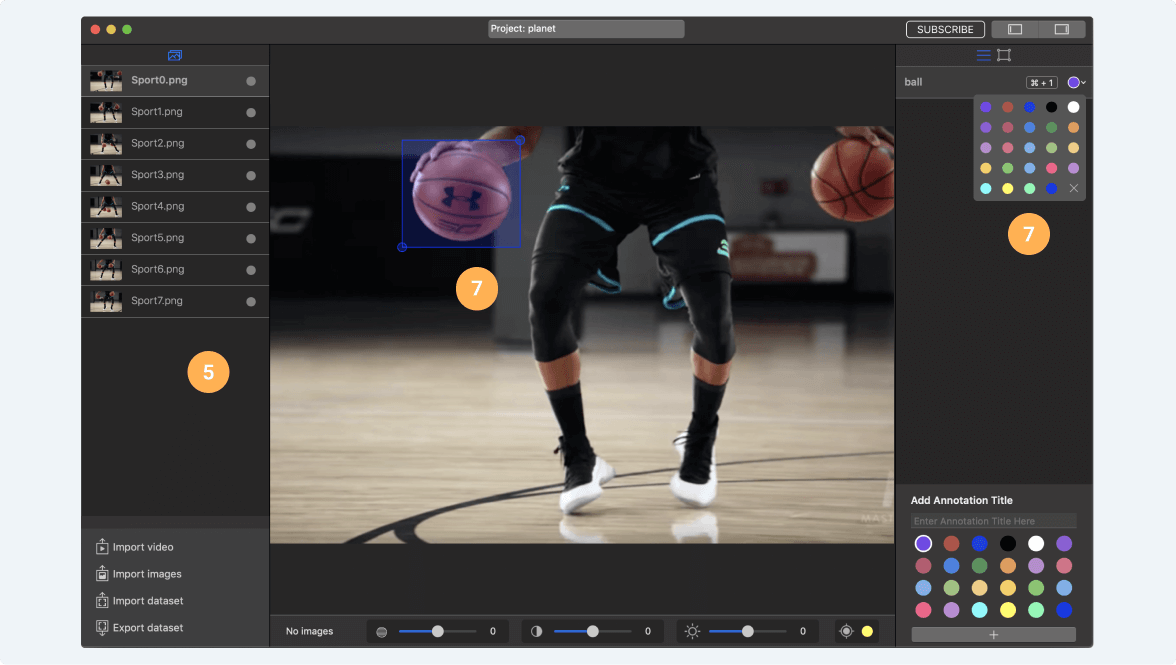
Import images
Import Images
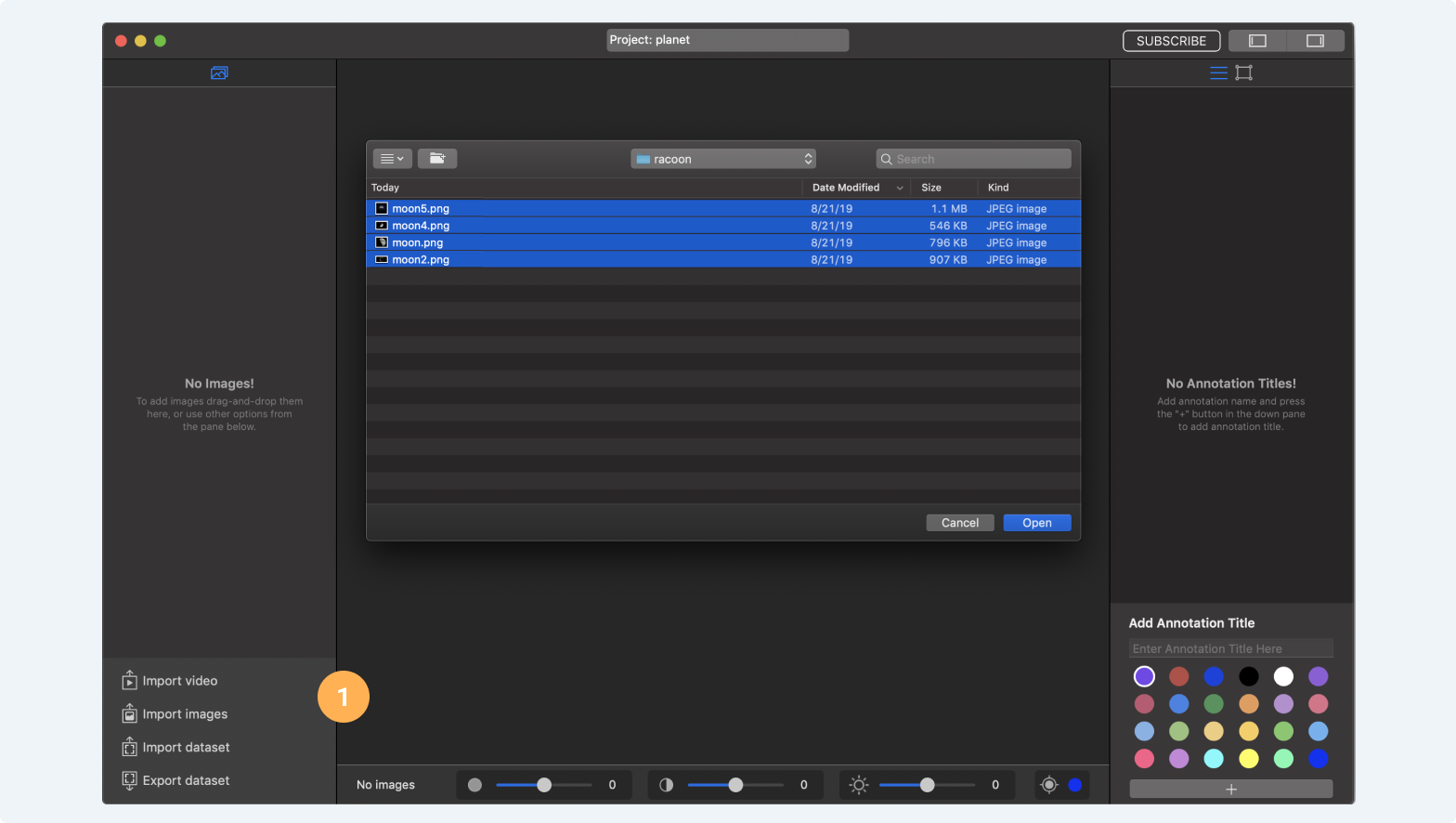
- Press the “Import Images” button and select them (use "Shift" + "Command" buttons for multiple selections).
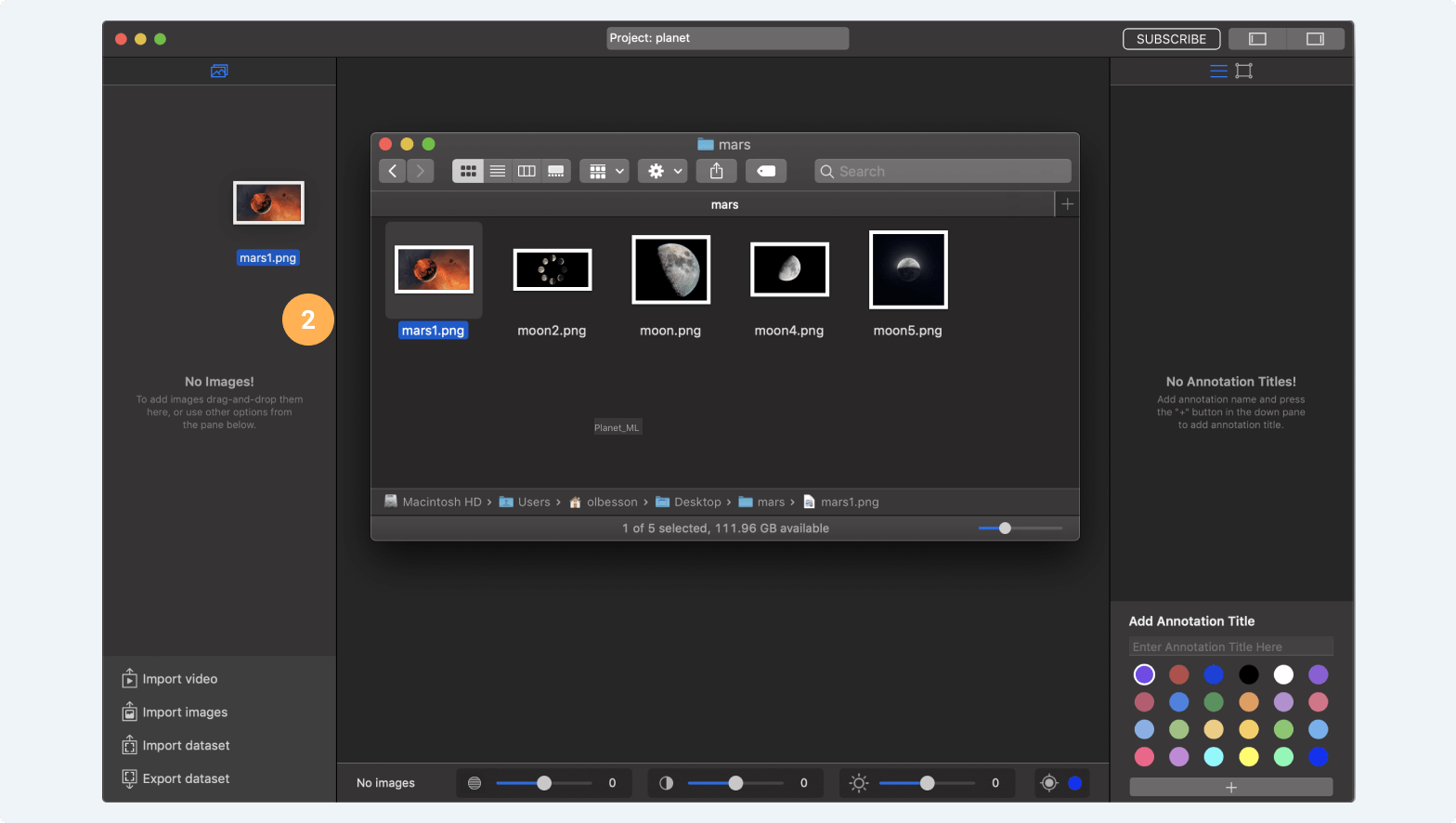
- You can also drag and drop images to the Images Pane to import them.
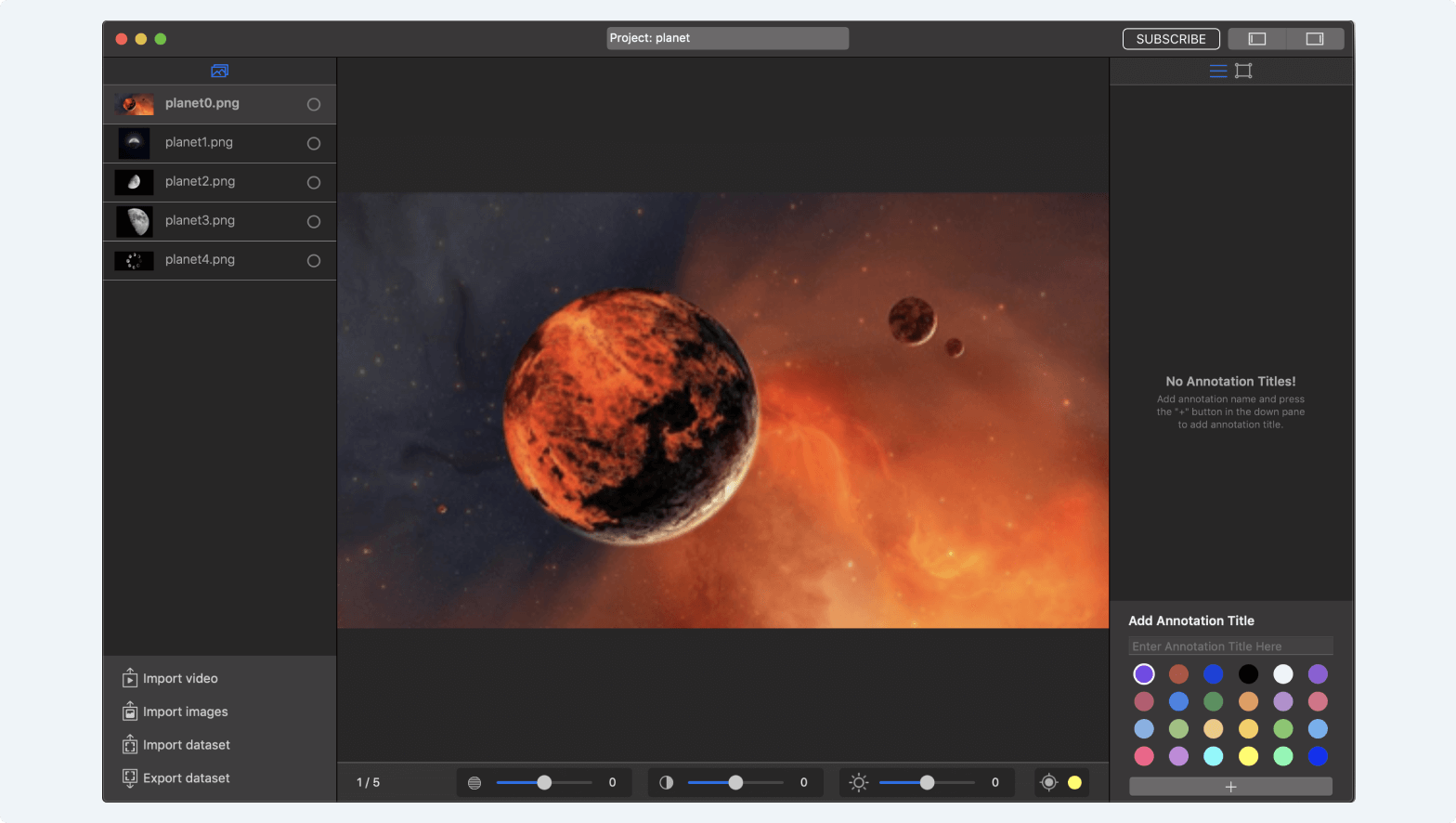
MakeML converts all images to .png format with max 600x600px dimension. That's because computer vision neural networks for mobile devices usually work on low image resolutions". Read More →
Import Images From Video
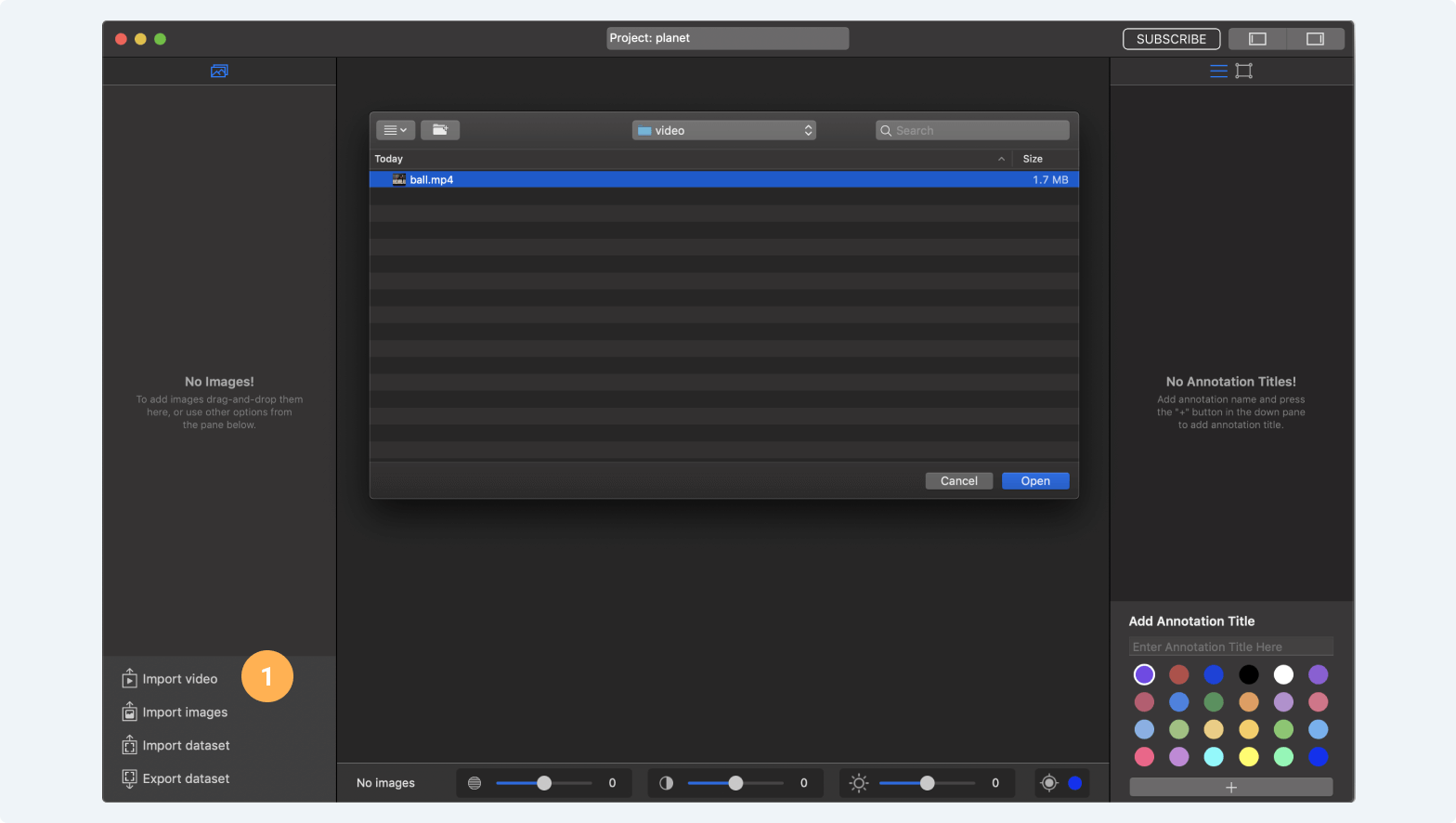
- Press the “Import Video” button and select a video them.
- You can preview video and select number of frames per image that will be imported. For example if you select 20, an image will be imported to your dataset on every 20th frame of the video.
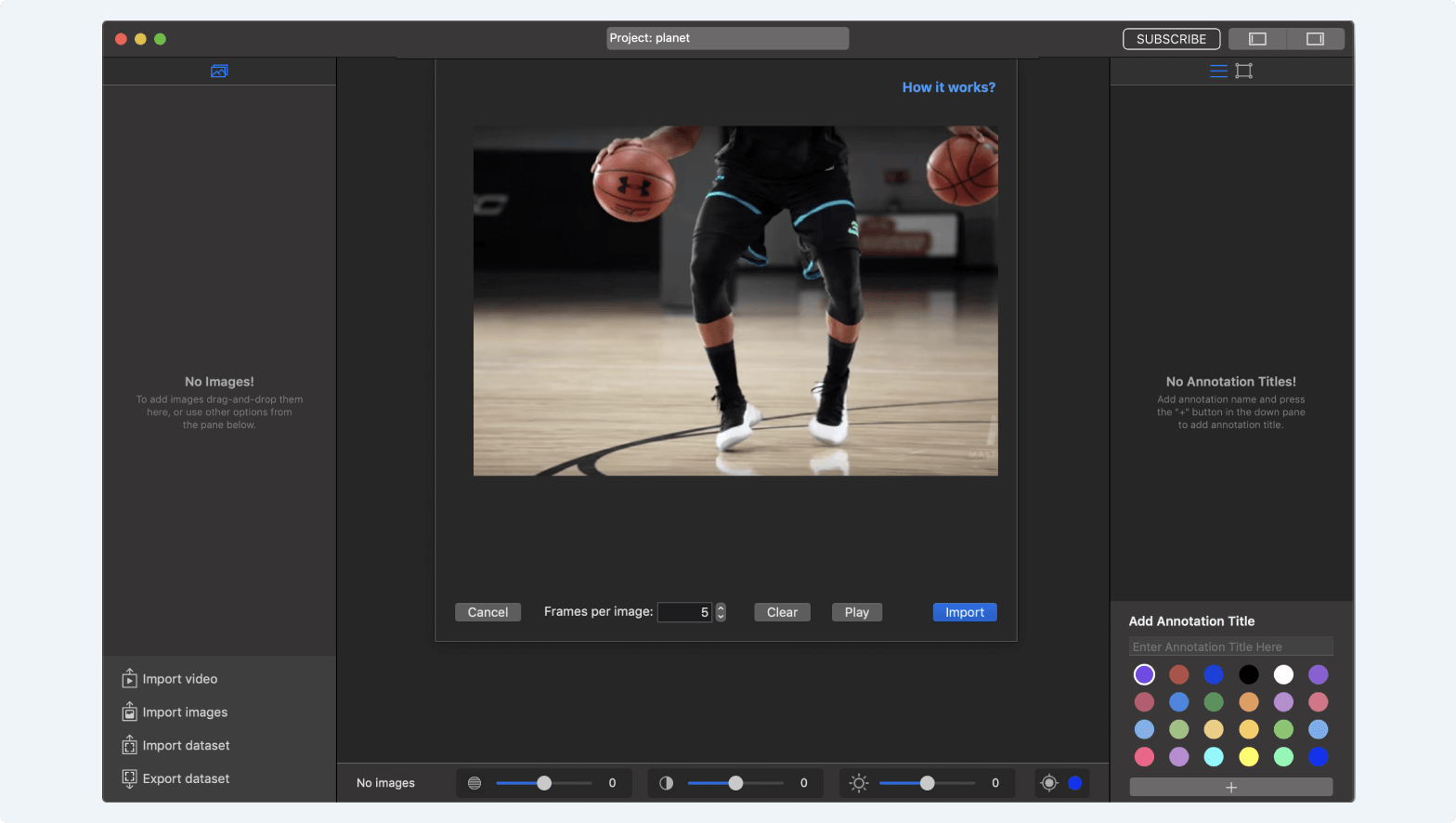
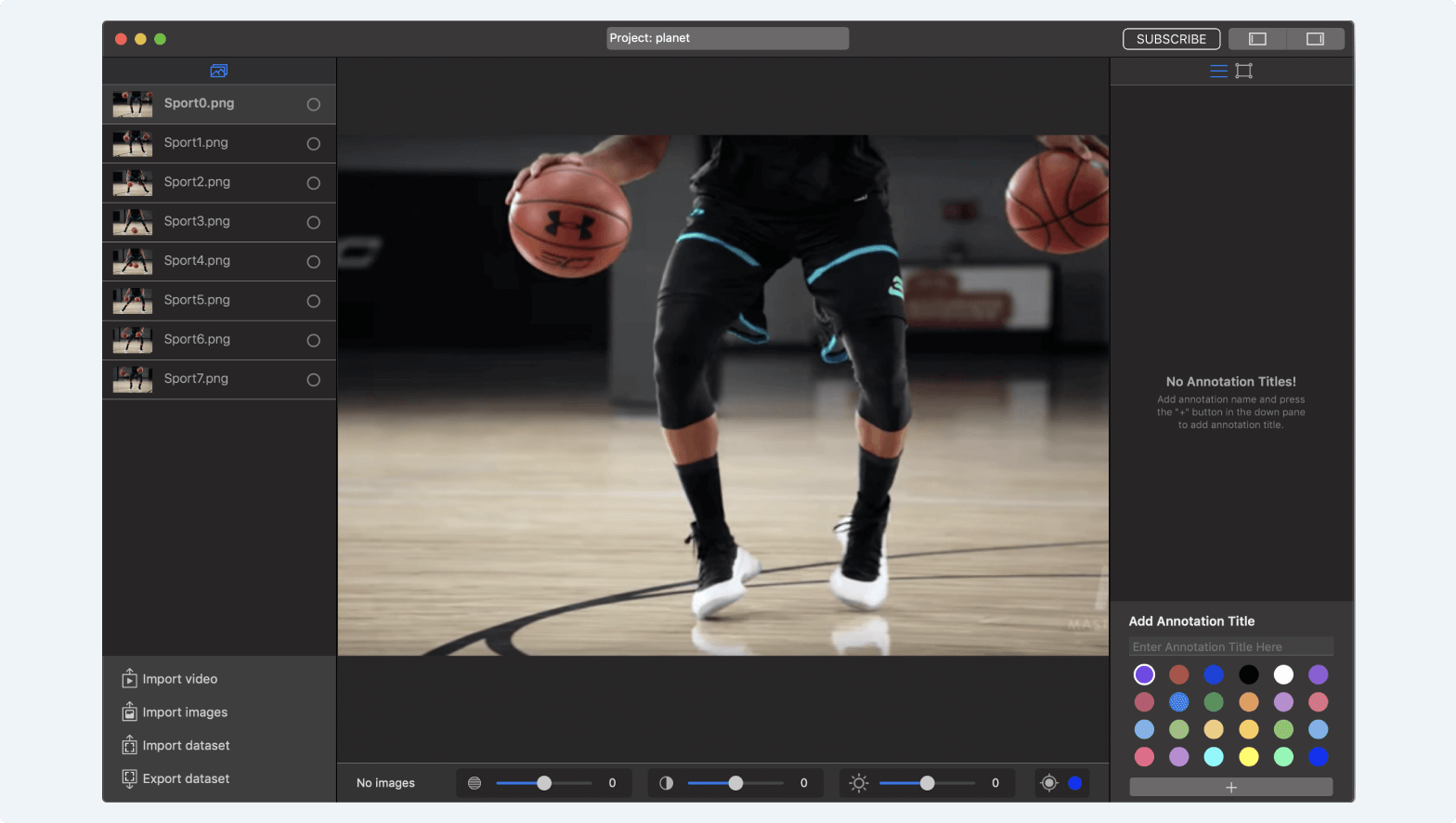
- Press import button and video will be processed and frames from video will be added to your dataset.
Video Annotation Tool
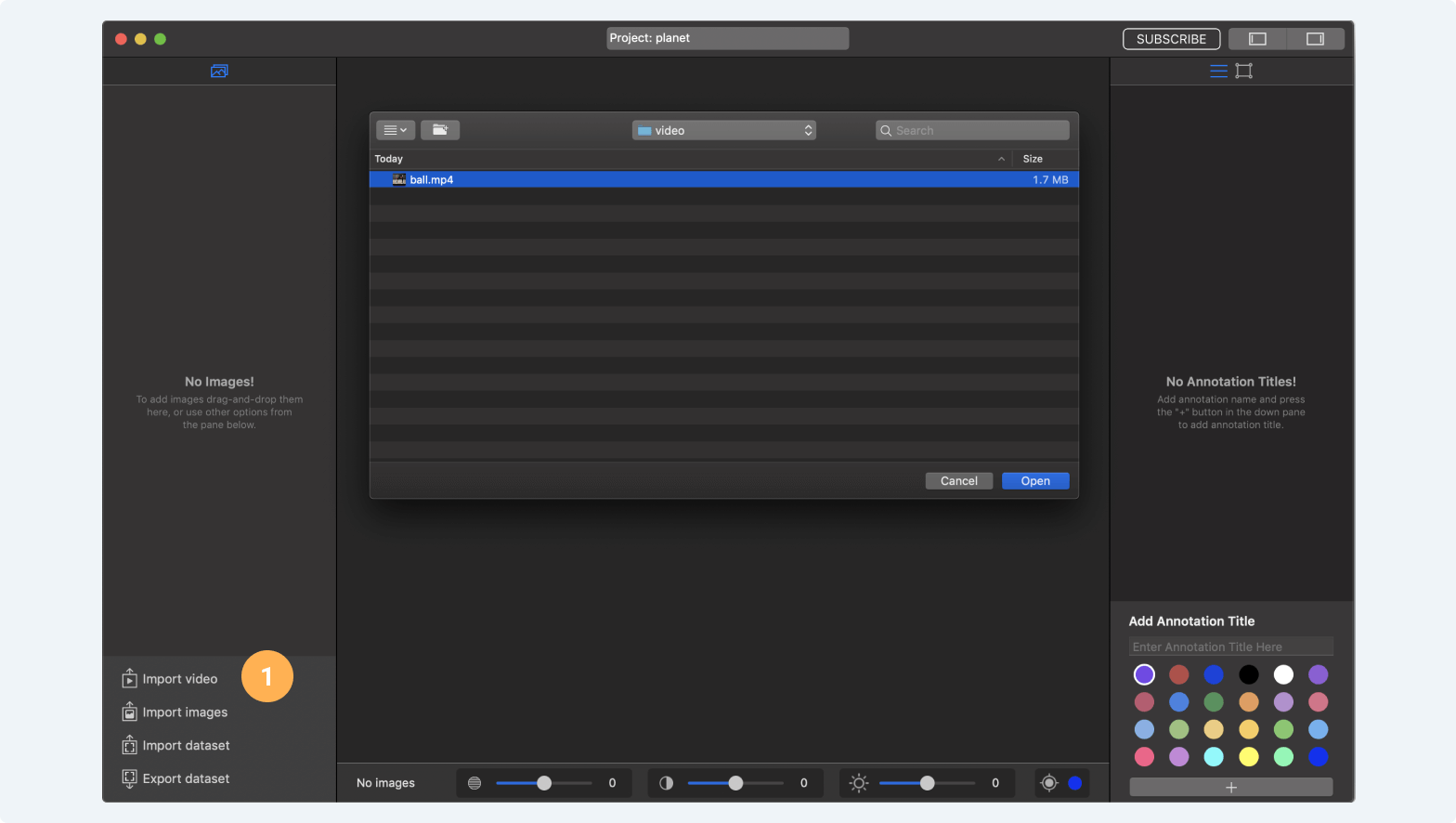
- Press the “Import Video” button and select a video them.
- Press left mouse button and drag to select an object on video.
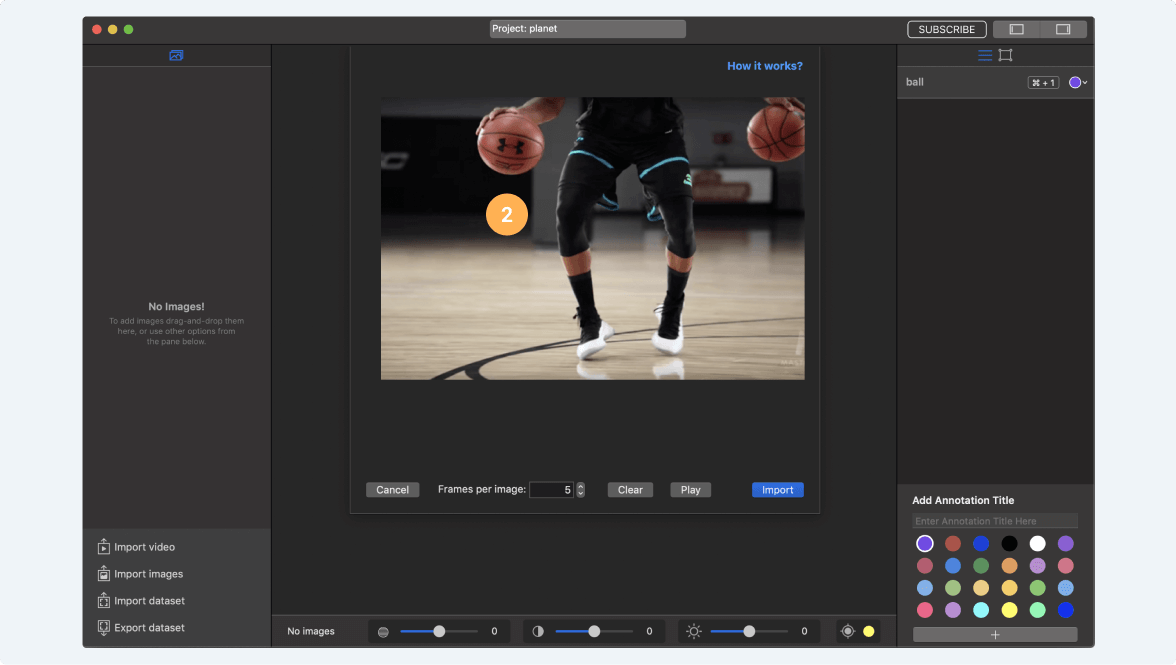
- Enter annotation title to this object.
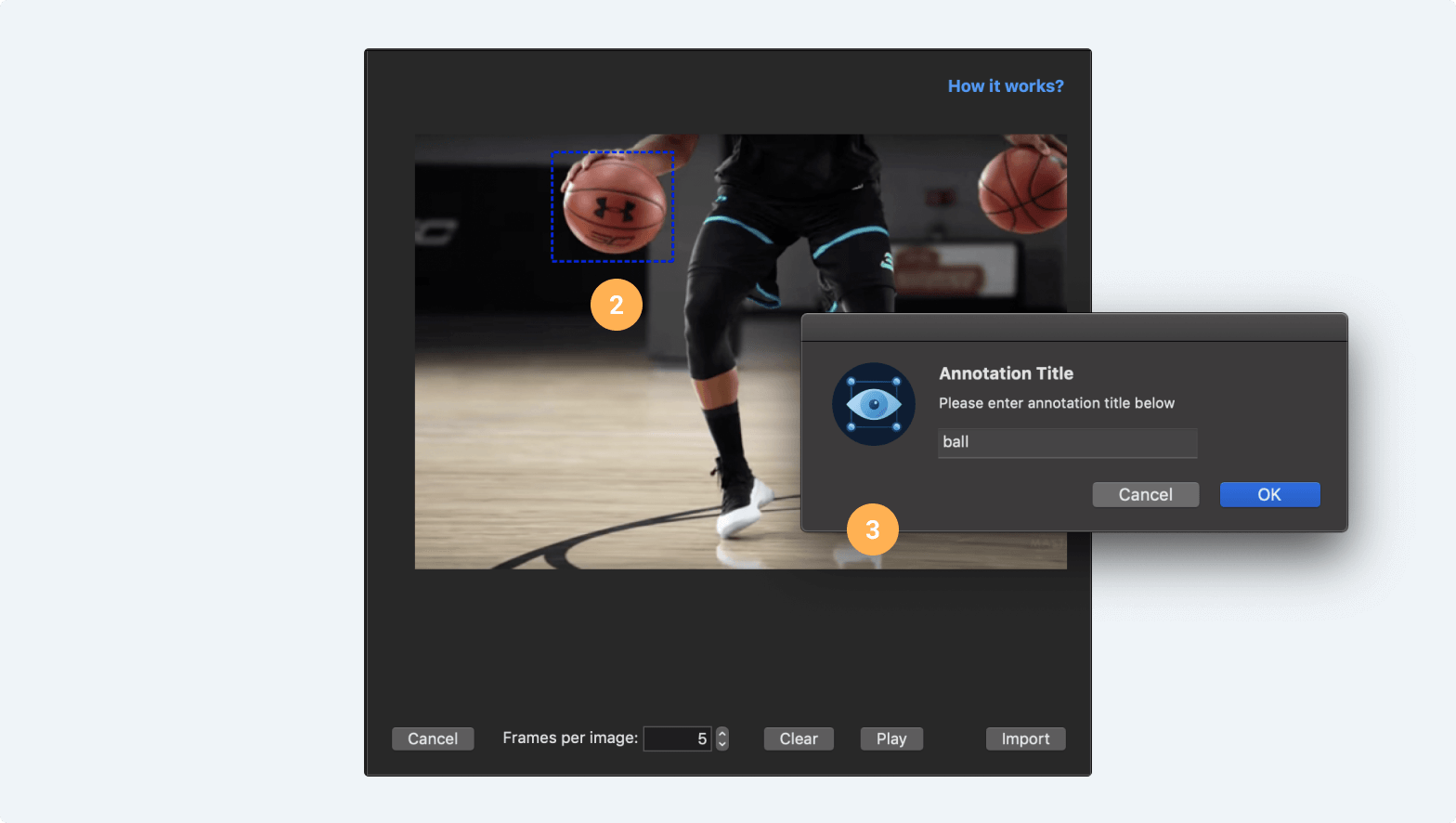
- We can preview how our object is tracked during the video. If you select wrong area you can clear selection by pressing "Clear" button.
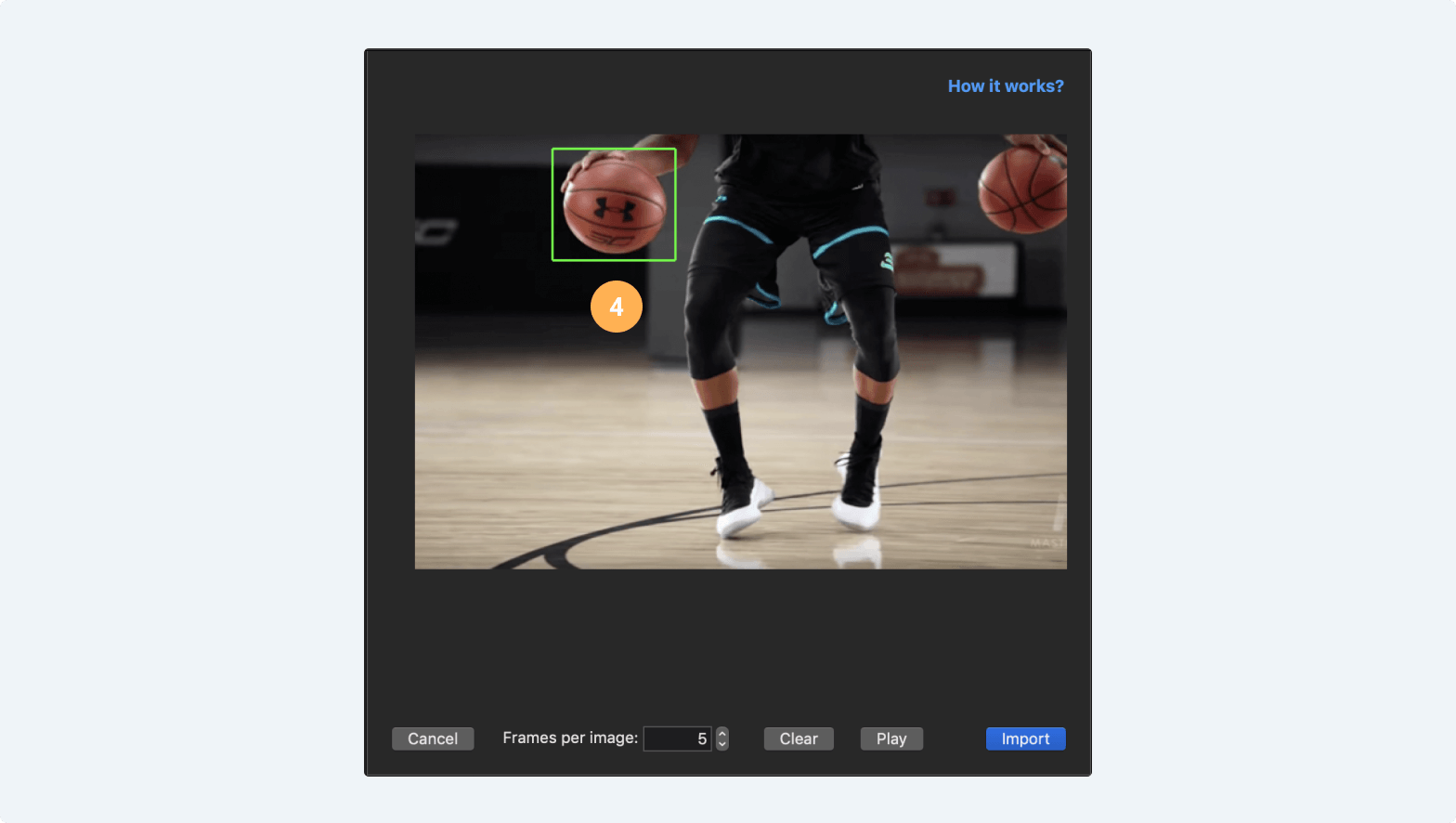
- Press enter button and frames from the video will be imported to your dataset with already annotated objects.
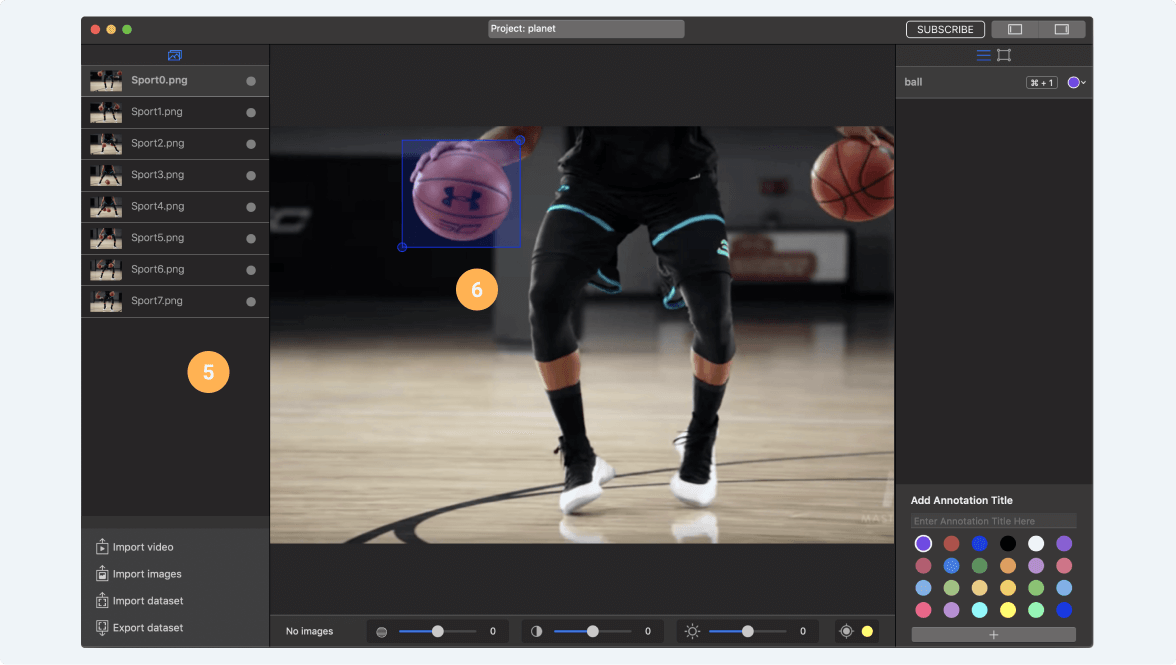
You can also edit annotations by dragging the circles in the corners of annotation after frames have been added to your dataset.
In the annotation titles panel you can see that annotation title that you have added using Video Annotation Tool have been added (or merged, if annotation title with the same name was already in your dataset). After importing you can change the color of annotation title.