Projects
On the projects page, you can create different types of projects oriented to your tasks, as well as manage them. You can also get quick access to your model training list.
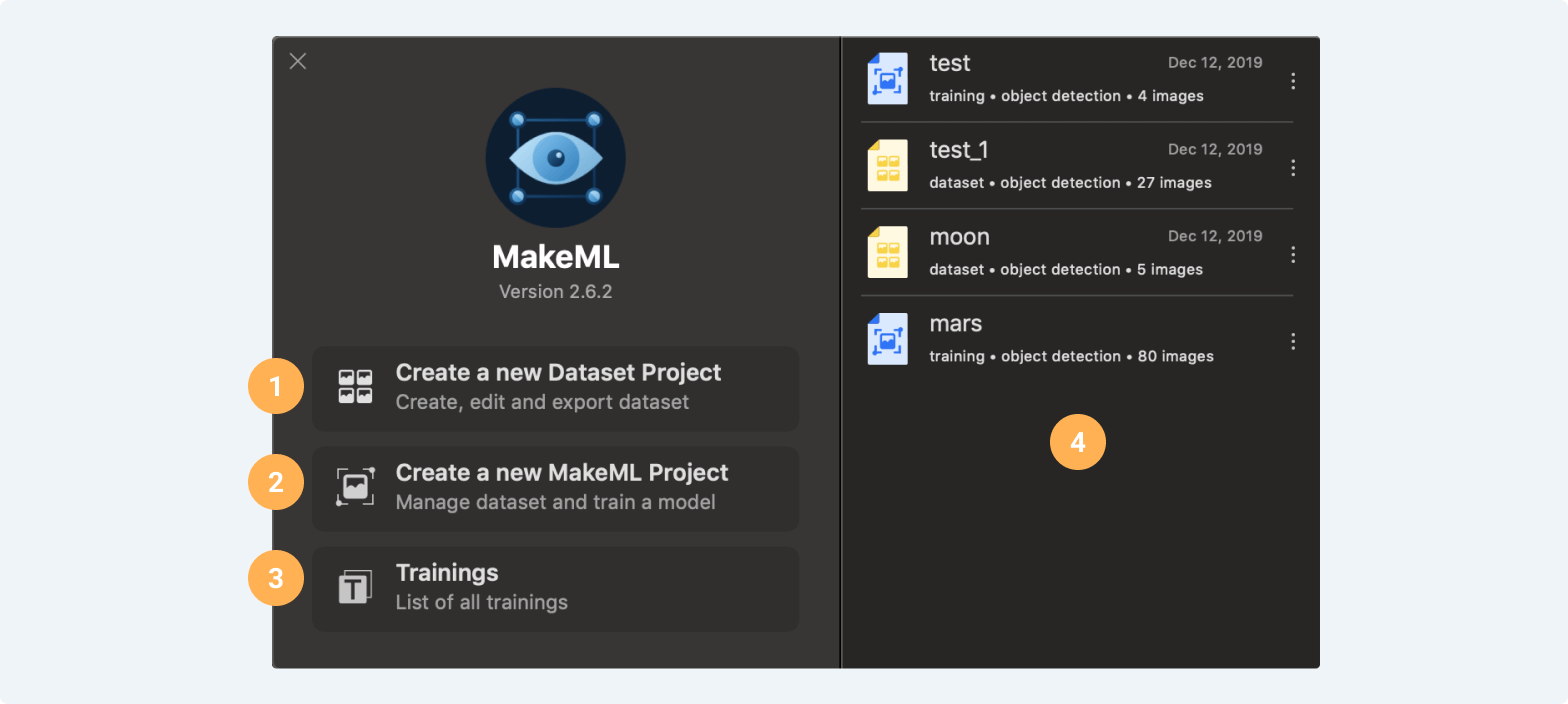
- Create a Dataset Project.
A Dataset Project type will suit you if you want to just create or edit your dataset for further use. To create an Object Detection Dataset project you need to press a button called "Create a new Dataset Project".
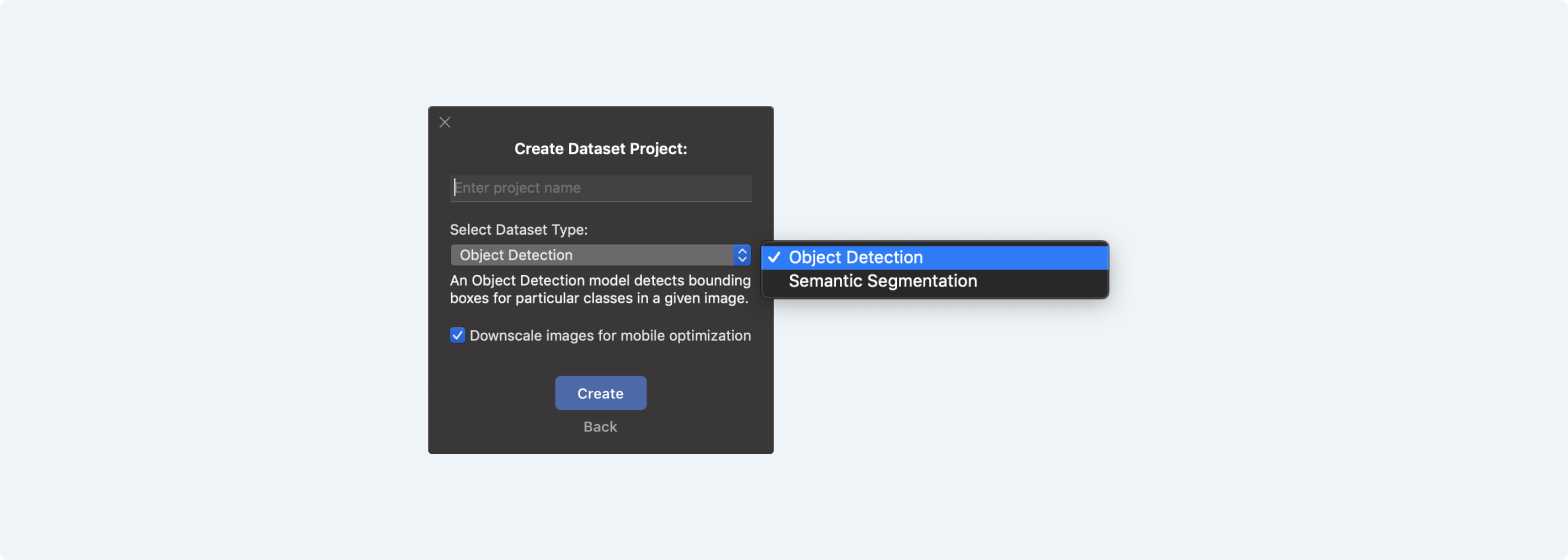
At the pop-up screen, you need to enter a project name and select an Object Detection Dataset Type. If you want to downscale images in your dataset for better mobile optimization, leave checkbox active, otherwise uncheck it. Then just press the "Create" button and your Dataset project will be ready.
- Create a MakeML Project.
A MakeML Project type will suit you if you want to create or edit your dataset and then train a model using it. To create a MakeML Object Detection Dataset project you need to press a button called "Create a new MakeML Project".
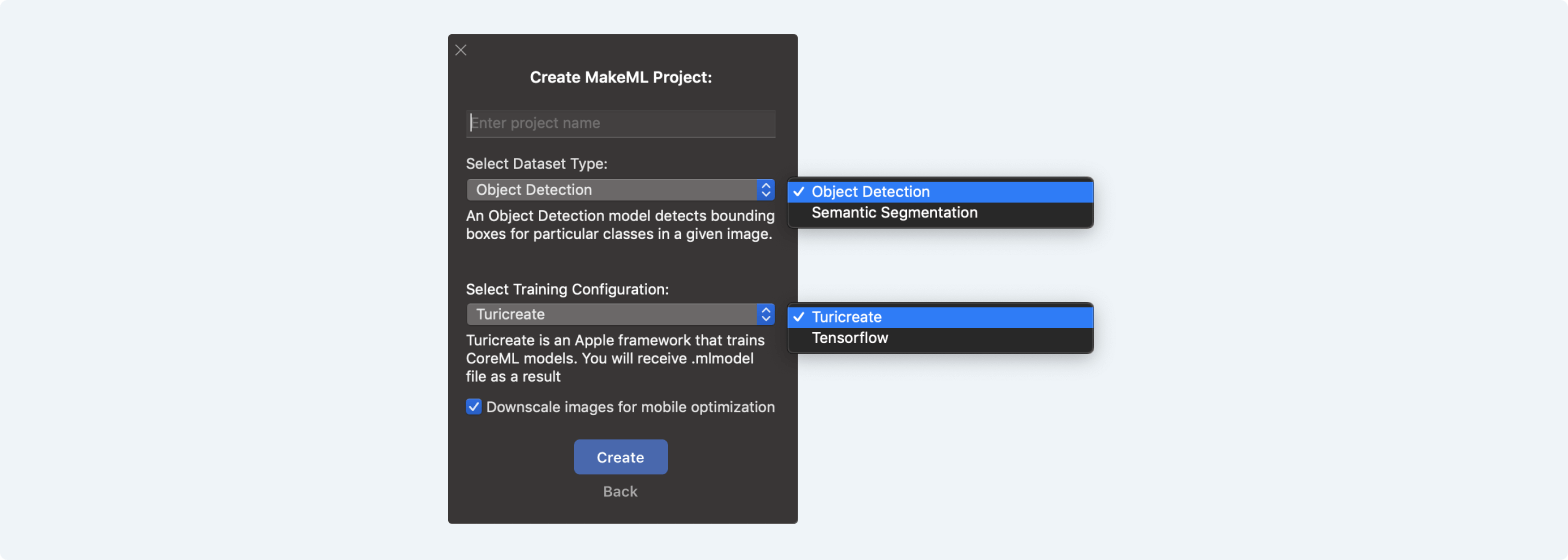
At the pop-up screen, you need to enter a project name and select an Object Detection Dataset Type. Then you need to select training configuration (Tensorflow or Turicreate). You also can select whether MakeML needs to downscale images in the project for better mobile optimization. We recommend using Tensorflow configuration.
- Trainings list.
There you can track the status, get the result of your training and download your model. Read More →
- Project list.
In the Project List, you can open, delete, view information of previously created projects. You can also see the type of project, the number of imported pictures.
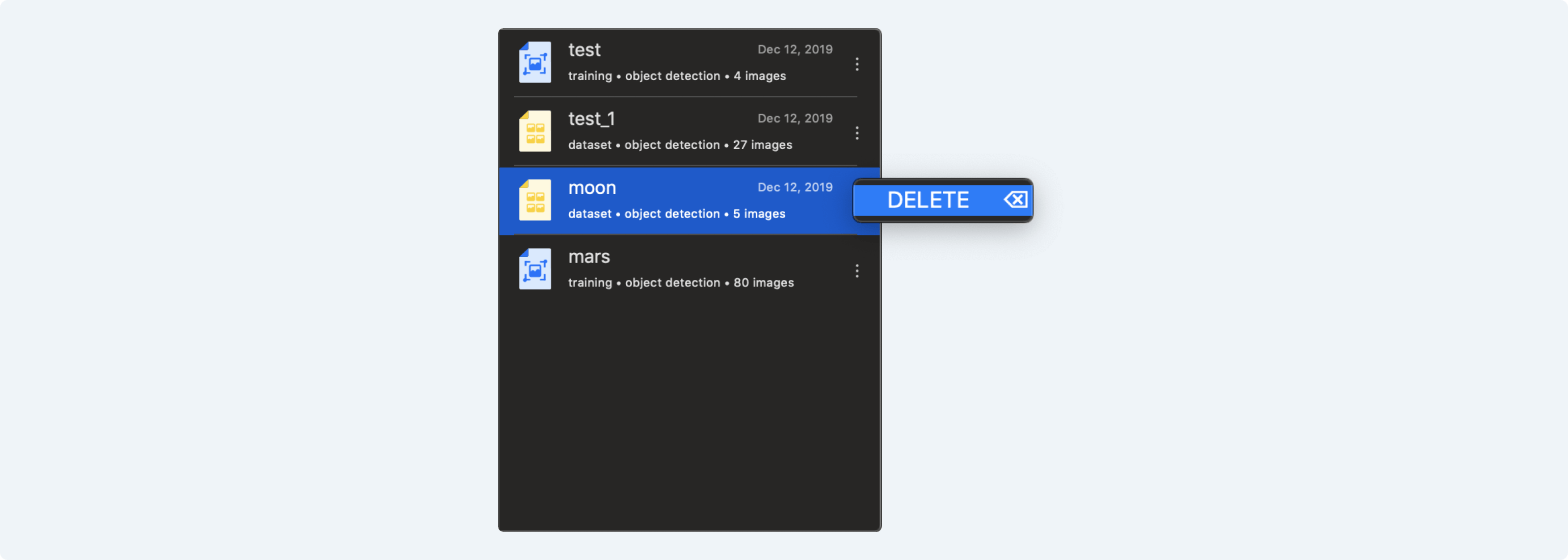
If you click on three points in the selected projects, you can delete it.